 LingSlide
Try the original and rebuilt PPTX
A public two-slide control sample, processed with the live LingSlide app on September 30, 2026. Text reconstruction was enabled; image enhancement and footer removal were off. This is one example, not an accuracy guarantee.
Compare both files in PowerPoint or WPS. The original contains one full-slide image per page. The rebuilt file contains editable text alongside the preserved background. Check titles, numbers, punctuation, and line breaks before using it.
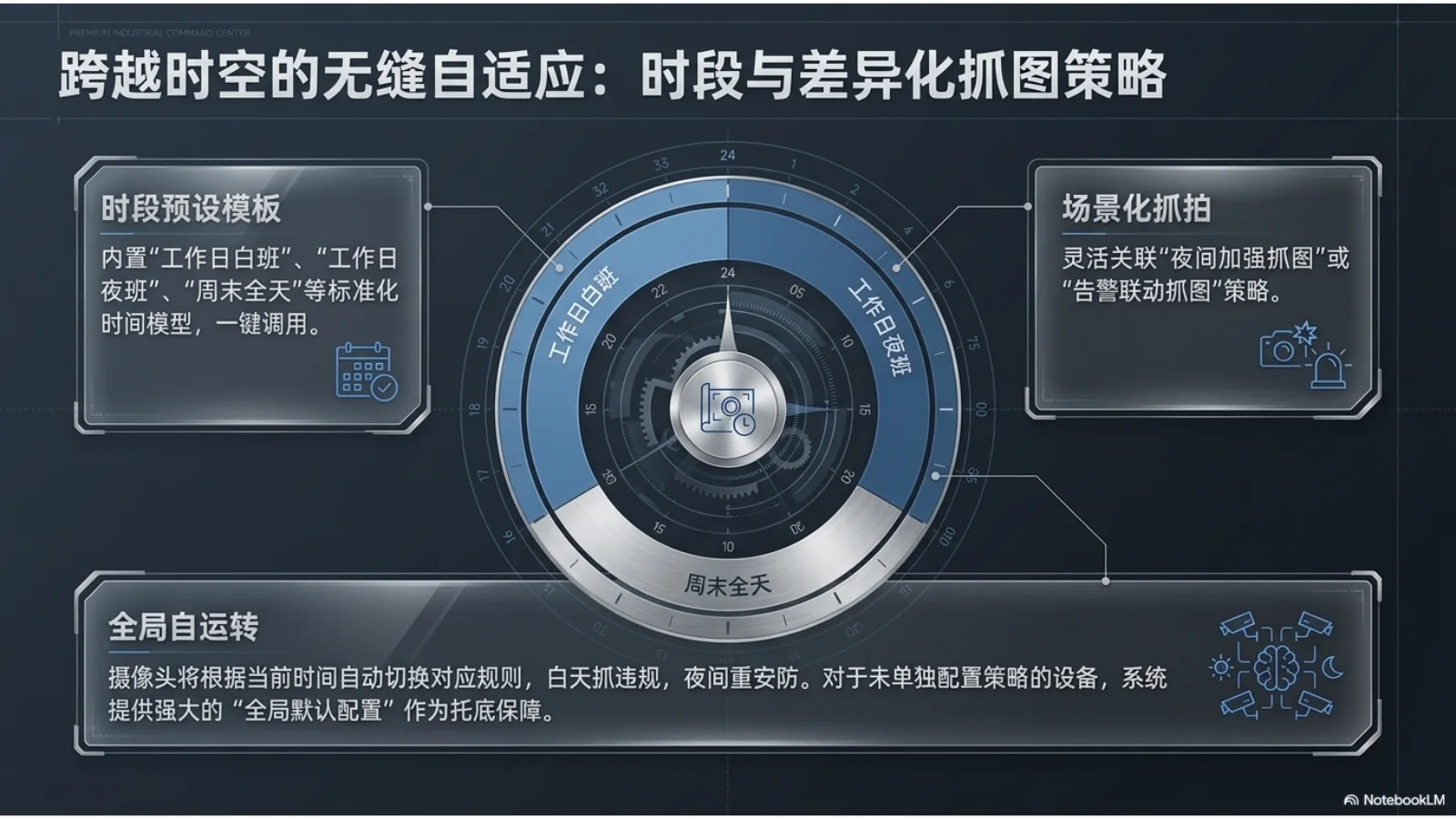
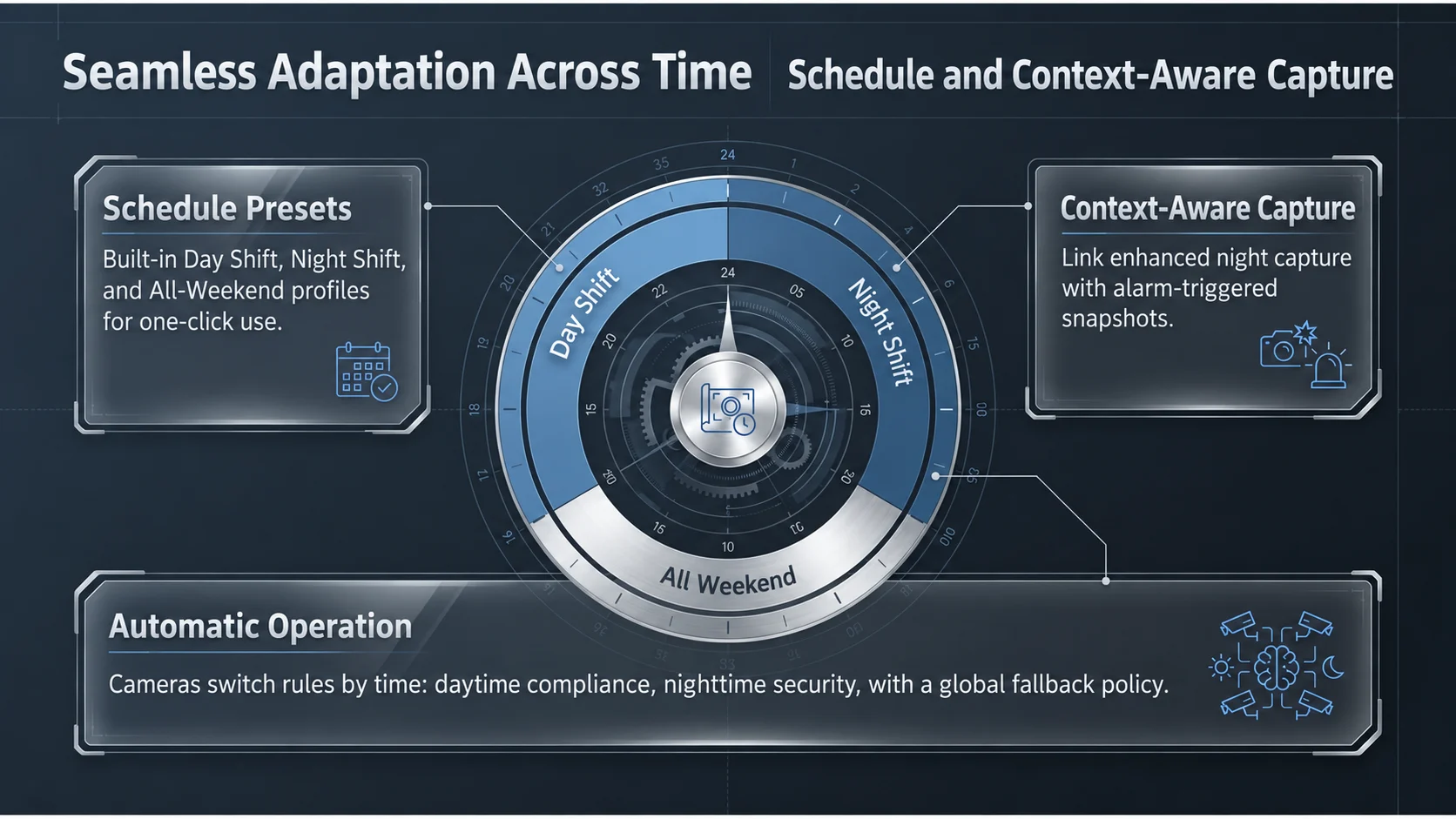
Review example: compare slide 1 at the same zoom. The title spacing, text weight and paragraph line breaks differ from the original. Review these before delivery. The original also contains imperfect JSON example text: reconstruction does not validate or correct the meaning of source content.
Confirm it in 30 seconds
- Click a title and try to type. If the whole slide gets selected instead, continue.
- Open Home → Arrange → Selection Pane.
- If the slide lists a single picture object, it's fully flattened. Pictures plus text boxes means a mixed slide.
The Selection Pane lists every object on the current slide, so it's more reliable than judging by eye. On a Mac it's under Arrange → Selection Pane; in WPS, look for the equivalent object list in the Home or Arrange menu.
Three ways to handle an image-based slide
| Goal | Method | Cost |
|---|---|---|
| Present as-is | Keep the images | Safest, but content can't be maintained |
| Just copy the words out | OCR, then paste | You redo position, size, line breaks, and the old text remains |
| Keep the design and edit text | Preserve background, rebuild text layer | Needs slide-by-slide review |
How text-layer rebuild works
- Keep the original: work on a copy; never overwrite the source deck.
- Classify slides: only process slides that are truly flattened.
- Detect text: titles, paragraphs, and numbers with their position, size, color, and alignment.
- Clean the background: remove the original lettering so it doesn't double up.
- Rebuild: write native PowerPoint text boxes; keep charts and decoration in the image layer.
- Review: compare with the original before exporting.
What stays editable, what needs manual work
Titles, paragraphs, bullet lists, and horizontal numbers convert best. Small low-contrast text, perspective or curved text, labels inside charts, and decorative lettering are more error-prone and may stay in the image. "Editable text" isn't the same as "every element separated." Forcing photos, icons, and complex infographics into vector shapes usually ruins the look, so LingSlide focuses on the words you actually need to change.
Before you export
- Double-click a few titles and paragraphs to confirm a text cursor appears.
- Check years, amounts, percentages, model numbers, names, and product terms.
- Look for font substitution, line-break changes, overflow, and overlaps.
- Compare at the same zoom to make sure charts and decoration survived.
- Run the slideshow once and save as a new file.
Related: image-based PDF to editable PPTX · edit NotebookLM slides.
Frequently asked questions
Why can I only select the whole slide as one image?
The slide was flattened: its content was saved as a single picture. This is common in AI-generated decks, PDF-to-PowerPoint conversions, scans, and decks exported to avoid layout shifts.
Will 'Save As' or removing read-only mode fix it?
No. The words are pixels inside the image, not locked text boxes. Saving in another format doesn't turn pixels back into text.
Can't I just copy the text out with an OCR tool?
OCR tools can extract the words, but they don't remove the original text from the picture or rebuild positioned, styled text boxes, so you'd still have to cover the old text and restyle everything by hand.
What does LingSlide keep and what does it rebuild?
It keeps the original slide image as the visual base, removes the detected text from it, and rebuilds titles, body copy, and numbers as native text boxes. Complex charts and decorations stay in the image.